Create an MD5 checksum for audio data (.WAV/.MP3/.AIFF) on macOS and Windows
What is an MD5 checksum?
The Message-Digest Algorithm 5 (MD5) is a hash function that generates a consistent hash value from a specific string or file. MD5 can be used for various applications such as verifying downloaded files or storing passwords.
Why do you need an MD5 checksum?
When you transfer master data to us for your CD, DVD, or Blu-ray pressing, we want to ensure the integrity of your data using the MD5 checksum. You can think of the MD5 checksum as a fingerprint of your file, allowing us to clearly verify that your data arrived without any loss during the internet transfer.
You should know that, especially when uploading data over the internet, it is split into small packets and later reassembled at the server (destination). It can always happen that due to disruptions in the Wi-Fi or internet connection, a few small data packets are lost; often the data is still usable or has no obvious errors.
However, audio or video data are much more sensitive than other data types. The error can manifest itself, for example, as a sudden 1 second of silence and scratching somewhere in your audio album, or a few missing frames in your 2-4 hour video file, which results in a brief flicker.
Since it is impossible for us to review all the data, the MD5 checksum verification protects you by ensuring the data arrived to us perfectly intact.
Can I skip the MD5 verification of my data?
Of course you can skip the verification. Even though it is rare for data to be transmitted incorrectly, we explicitly recommend ALWAYS doing the verification.
If you wish to opt out of the MD5 verification, we ask you to confirm this by email regarding your order. However, if the MD5 checksum is missing, we assume no liability for any errors caused by this. Complaints in this regard are excluded.
Creating MD5 checksums of .WAV / .MP3 or other files on Windows
In the following example, we will show you how to create MD5 checksums of .WAV files using the free freeware program MD5summer. This could also be any other file, e.g., .MP3 / .MKV / .MOV / .ISO, as well as files from your DDP, etc.
You can download the program directly here in a .ZIP file:
[https://www.md5summer.org/md5v12011.zip](https://www.md5summer.org/md5v12011.zip)
Once you have downloaded and extracted it, you will find a file called md5summer.exe. Open it by double-clicking.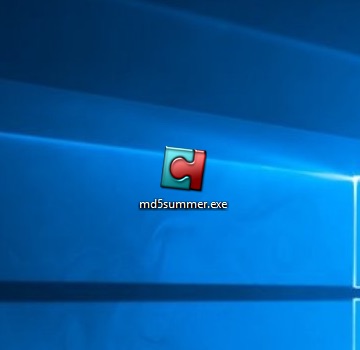
2) Select the folder where the audio data is located and then click on "Create sums".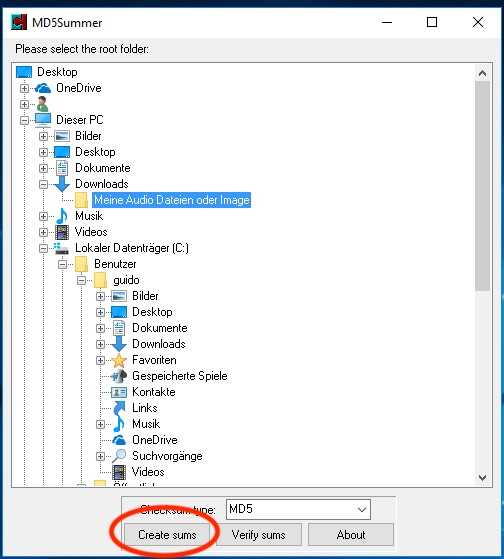
3) Select all the tracks that have been transferred to us and then click on "Add".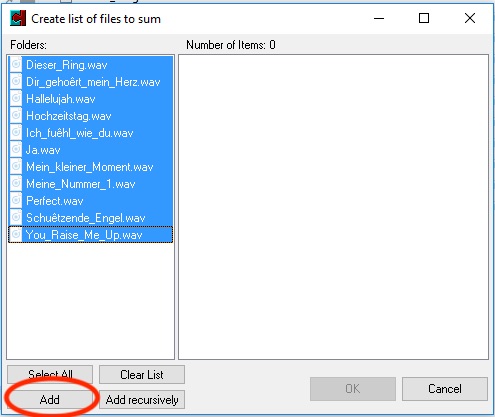
4) Now just click on "OK".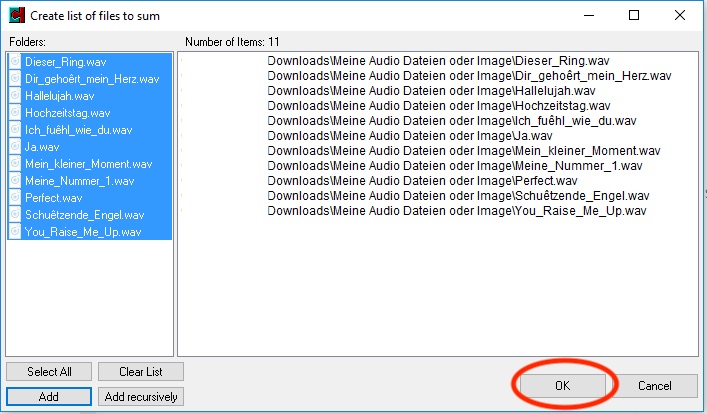
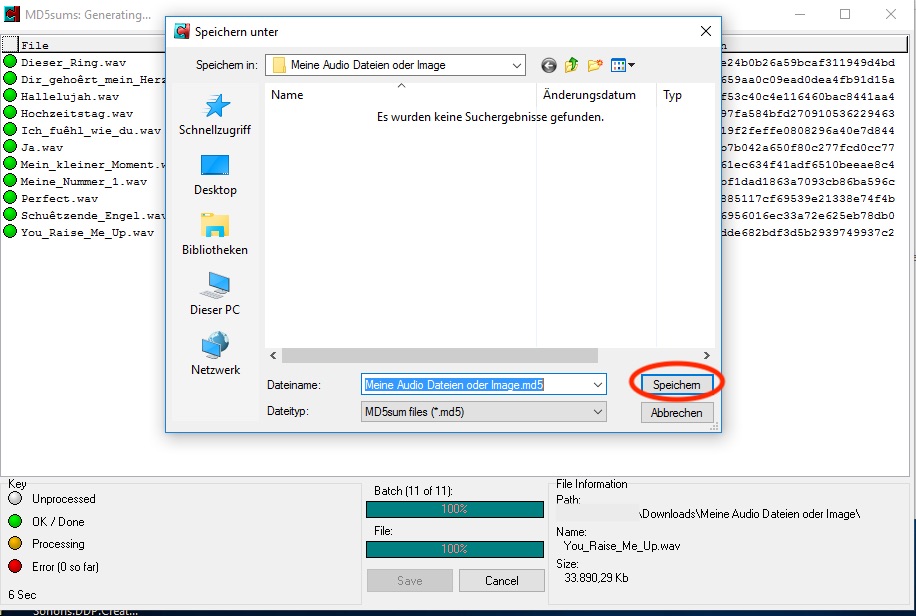
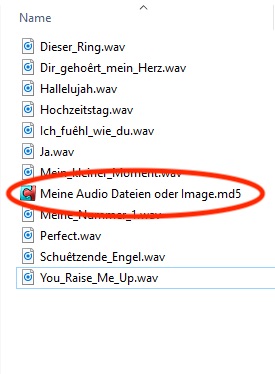
6) Now you just need to send us the .MD5 file (simply upload it in the shop with your order):
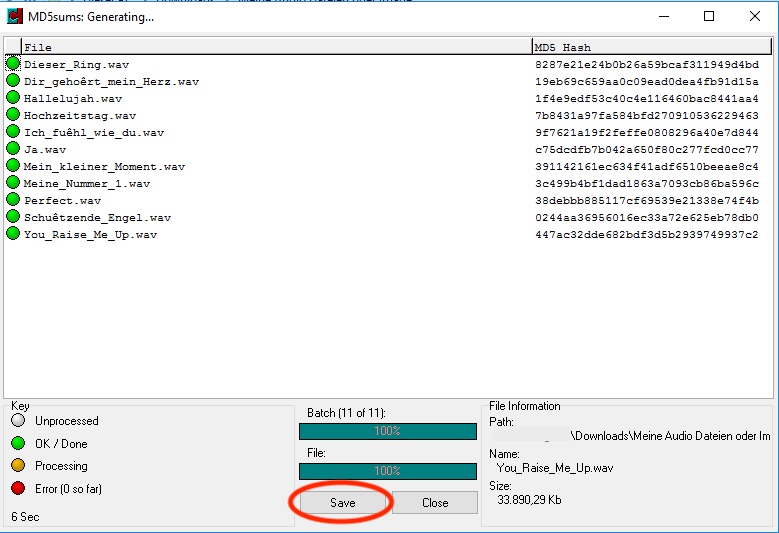
EXCEPTION: If the "Save as" window does not open by itself in step 5), you have to click the "Save" button, then proceed as described in step 5):
Creating MD5 checksums of .WAV / .MP3 or other files on MacOS
We currently do not have a detailed guide here, but one will follow shortly.
On a Mac, you can find out the MD5 checksums of files via the "Terminal" application, but this process is a bit more complicated and requires some experience with Terminal.
1) To do this, first search for the "Terminal" program. You can find it either via the Spotlight search (MacOS: CMD+Spacebar) e.g.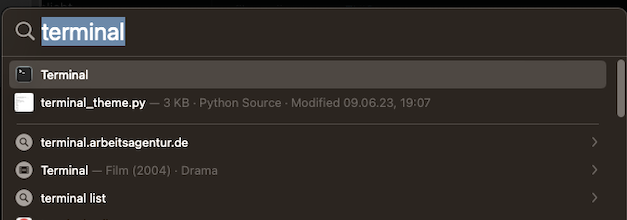
or under Applications -> Utilities -> Terminal
2) You then have to navigate to the folder where your audio files are located (your .WAV or .MP3 files). You do this by typing the word "cd", a SPACE, followed by the path to the folder (and then press enter)
cd /Users/datacheck/Desktop/MeineCD2
You can also just type "cd" + a SPACE and then drag the folder into the Terminal, it will then automatically use the path: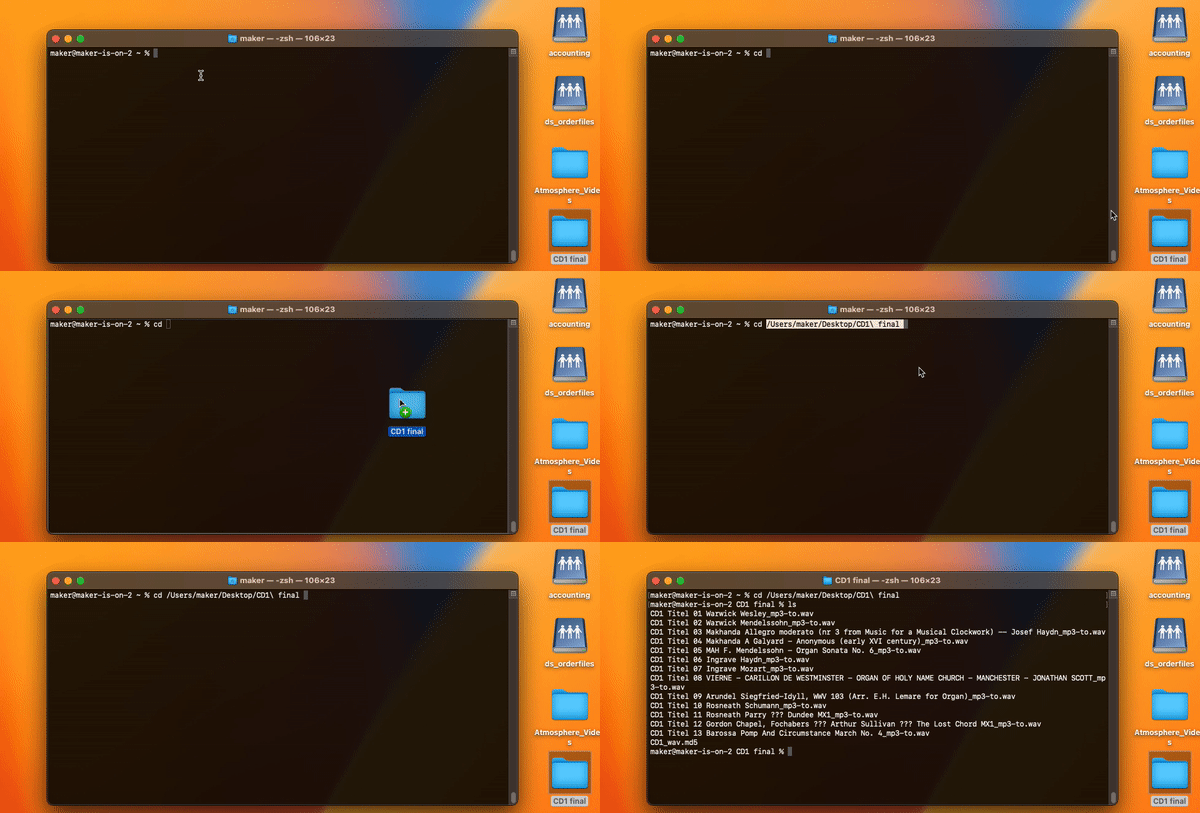
After you press ENTER, you are in the folder, and with the "ls" command you can display the contents, where you should then see your audio data: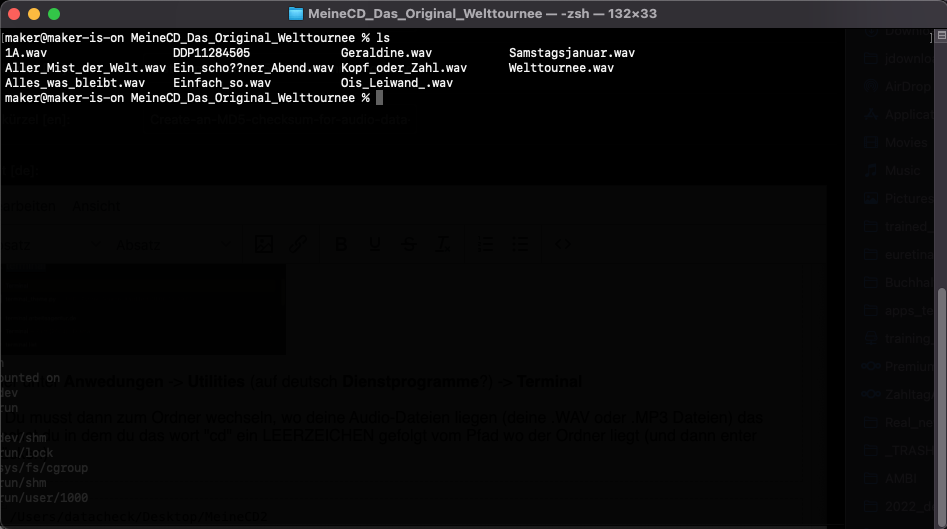
Now you can use the command
md5 filename.wav (press ENTER)
To output the MD5 checksum for this file: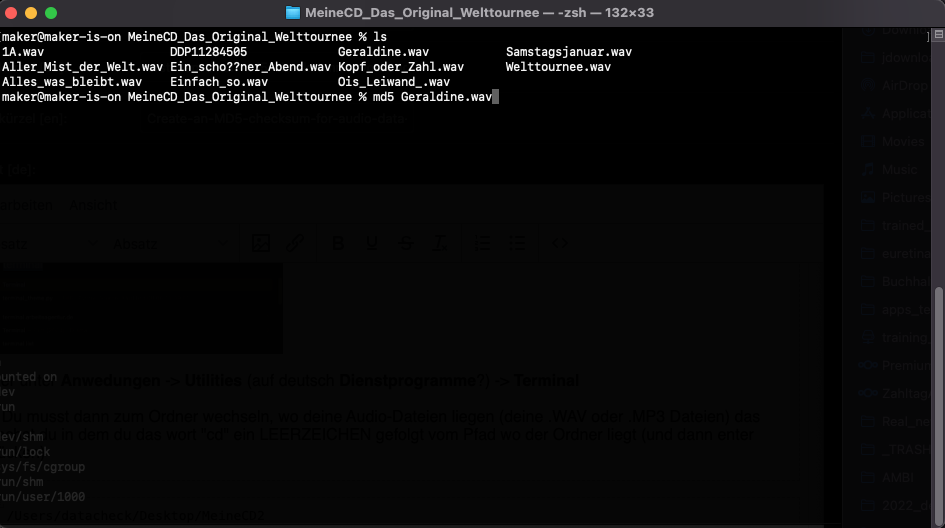
If you do it for all of them, it looks like this: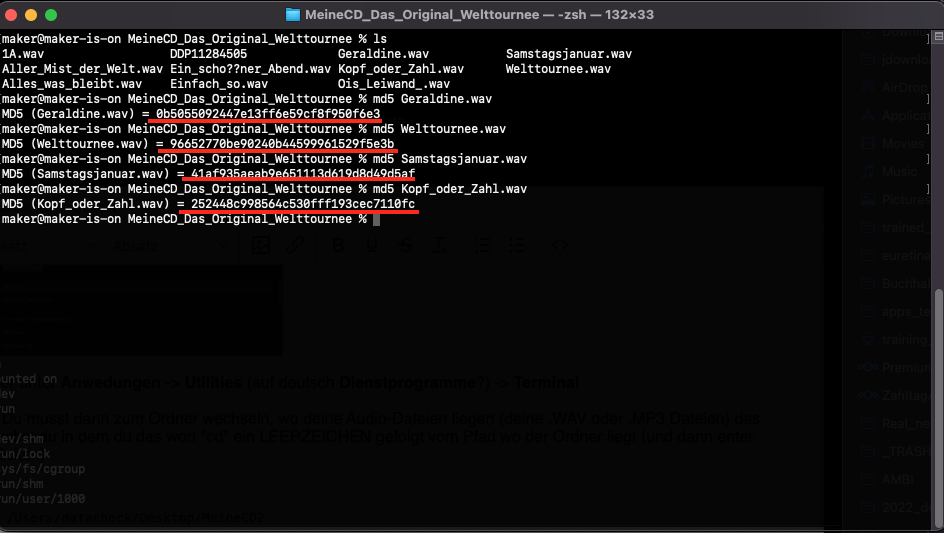
It is important that we know which MD5 checksum belongs to which file, so it would be great if you created a text file named MD5-Checksums.txt and listed the MD5 checksums line by line in the following structure:
0b5055092447e13ff6e59cf8f950f6e3 *filename.wav
so e.g.
0b5055092447e13ff6e59cf8f950f6e3 *Geraldine.wav
96652770be90240b44599961529f5e3b *Welttournee.wav
41af935aeab9e651113d619d8d49d5af *Samstagsjanuar.wav
252448c998564c530fff193cec7110fc *Kopf_oder_Zahl.wav
etc. You can then simply upload the MD5 checksum file in the shop.
Alternatively, there is the following program for Mac, but it is outdated and you have to grant various security permissions to run it:
[http://www.julifos.com/soft/checksum/checksum.zip](http://www.julifos.com/soft/checksum/checksum.zip) (mac)
With this program, you only have to drag in the .WAV files and it will automatically generate the checksums.
Creating MD5 checksums of .WAV / .MP3 or other files online (independent of the operating system)
[https://emn178.github.io/online-tools/md5_checksum.html](https://emn178.github.io/online-tools/md5_checksum.html) (experimental)